How to enable kerning and ligatures in Canva
Breaking news, designers! Canva has just released support for kerning and ligatures.
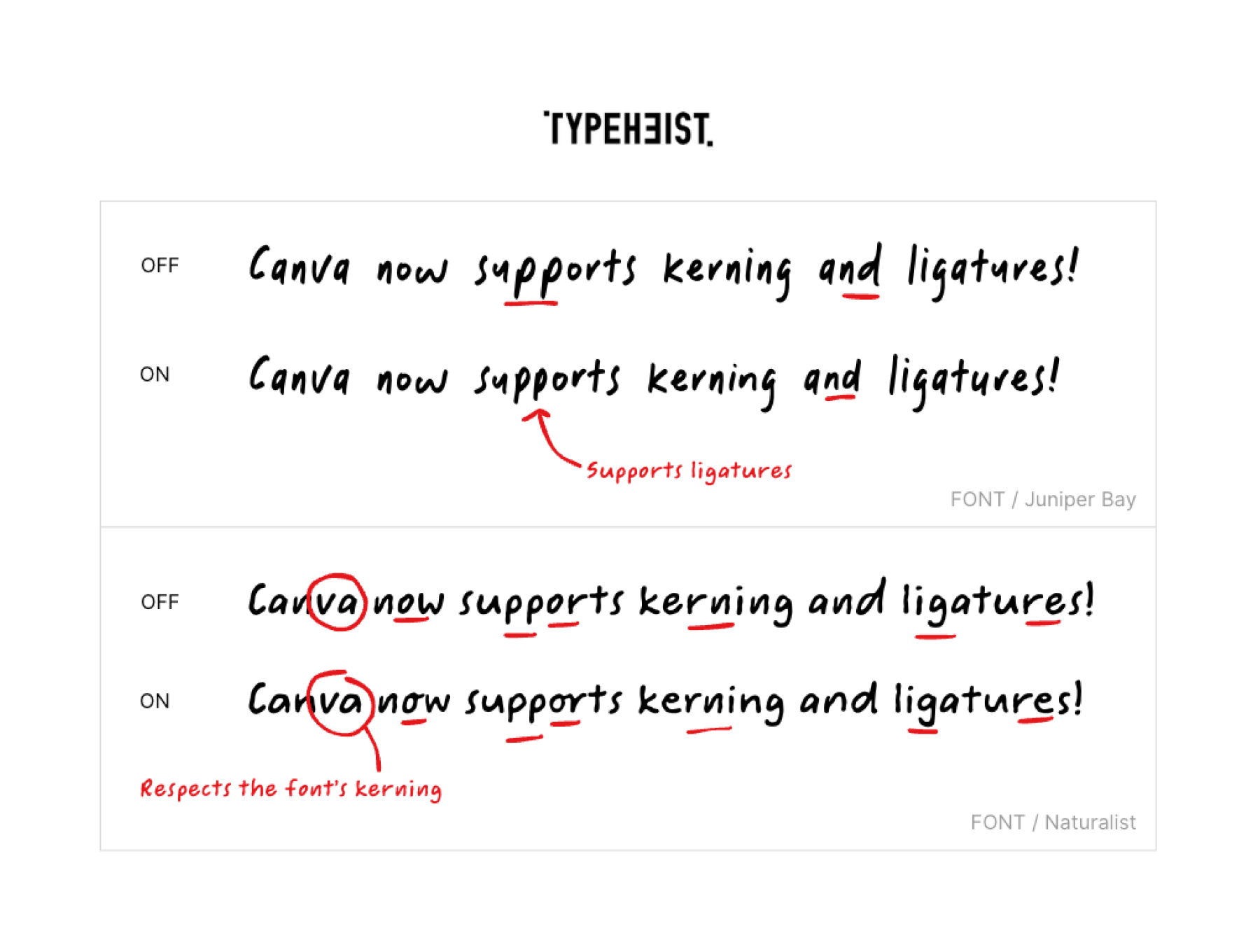
It's finally happened... Canva now supports kerning and ligatures! Here's how to enable them in your projects.
- Open your project in Canva
- Select a text box and click the 'Advanced formatting' icon (it looks like an A with settings switches)
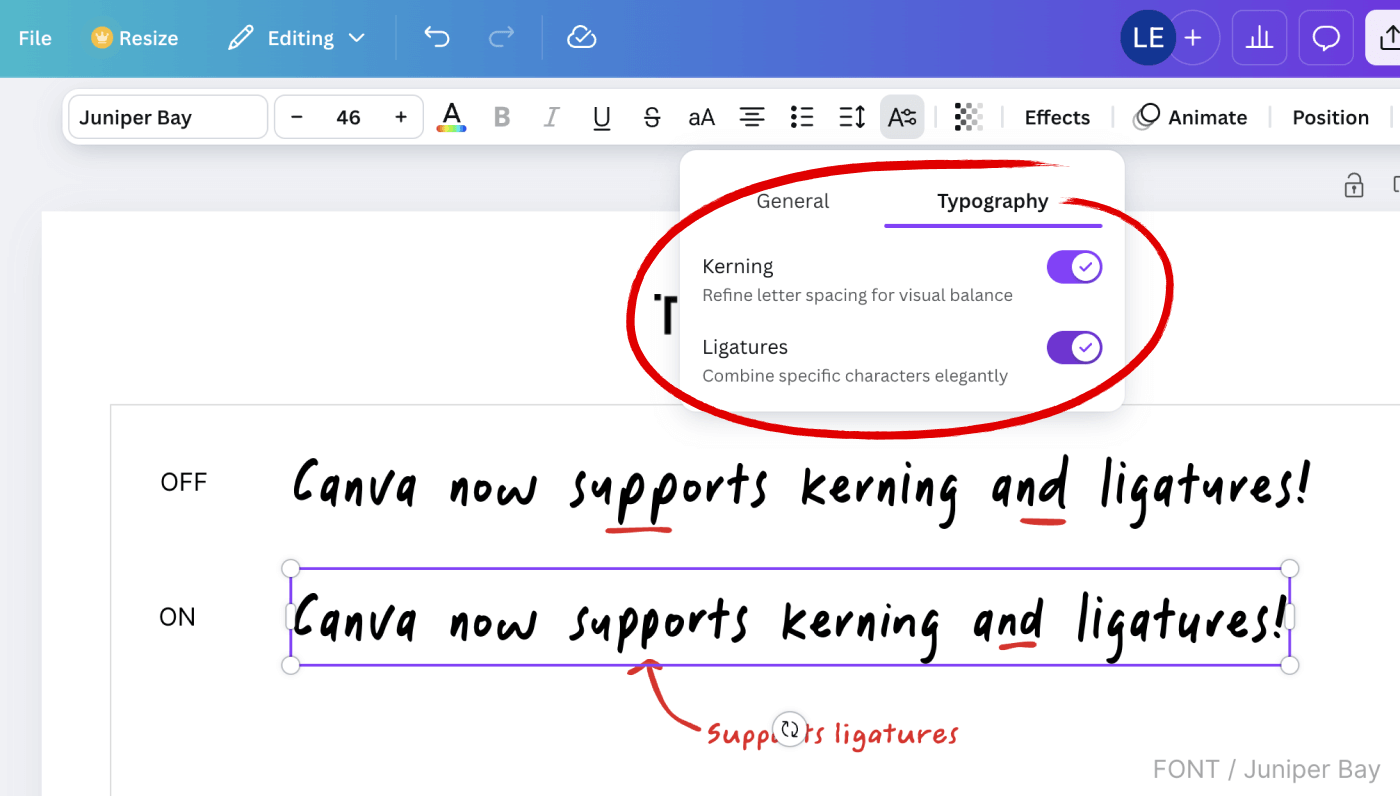
- Go to the 'Typography' tab
- Turn on the 'Kerning' and 'Ligatures' toggles
- Your text should now show any ligatures and custom kerning included in the font
Note: Some fonts may not include ligatures. Ensure your chosen font supports them (otherwise you might not see any changes!).
Keep reading
View all articles →
Anti-Design Fonts: Messy Handwriting Fonts That Feel Human
Messy handwriting, awkward layouts, scribbled notes and intentionally imperfect typography have become a core part of the anti-design movement. Rather than looking polished, these brands look human.
Read on →
12 Brands That Use Handwritten Type Beautifully
While many modern typefaces aim for precision and perfection, handwriting embraces small imperfections. Here are twelve brands that use handwritten fonts beautifully, and why their approach works.
Read on →